|
HTML : Hyper Text Markup LanguageHTML stands for HyperText Markup Language. It is the standard language used to build and structure the content of a webpage.
Fun fact: The very first website ever created is still online here: First Website |
|
|
Install Required Software
|
1. The Heading (<h1> to <h6>)
Headings are HTML tags used to define titles and subtitles on a webpage. They create a logical hierarchy, helping both humans and machines (like search engines or screen readers) understand the structure of your content.
            <h1>Main Heading</h1>

            <h2>Section Heading</h2>

            <h3>Sub-section Heading</h3>

            <h4>Smaller Heading</h4>

            <h5>Even Smaller</h5>

            <h6>Tiniest Heading</h6>

<h1> → The most important heading, usually used once per page as the main title.
<h2> → Major section heading.
<h3> → Sub-section under.
<h4> → Sub-section under.
<h5> → Less important heading.
<h6> → The least important, often used rarely.
🔹Why it matters:
- Organization: Makes content easy to scan for readers.
- SEO: Search engines use headings to understand page content.
- Accessibility: Screen readers rely on headings to navigate pages.
- Not just size: Don’t use headings to make text big, use them to give structural importance.
2. The Paragraph (<p>)
The paragraph tag defines blocks of text. It’s the most common tag for writing content.

            <p>This is the first paragraph. It contains sentences about a topic.</p>

            <p>This is the second paragraph. The browser will display it with spacing above and below.</p>
🔹Why it matters:
- Readability: Breaks content into digestible chunks.
- Organization: Makes pages easier to navigate visually.
- Semantics: Tells browsers and search engines that this is a distinct paragraph.
3. Horizontal Rules (<hr>)
The <hr> tag is used to create a horizontal line (rule) across the page. It represents a thematic break or a change in topic within your content
- Purpose: To separate different sections or topics in a webpage.
- Display: Usually shown as a thin, horizontal line across the page.
- Self-closing: You don’t need a closing tag (</hr> is invalid).
4. The Line Break (<br>)
The <br> tag forces the text to break and continue on the next line, without starting a new paragraph.
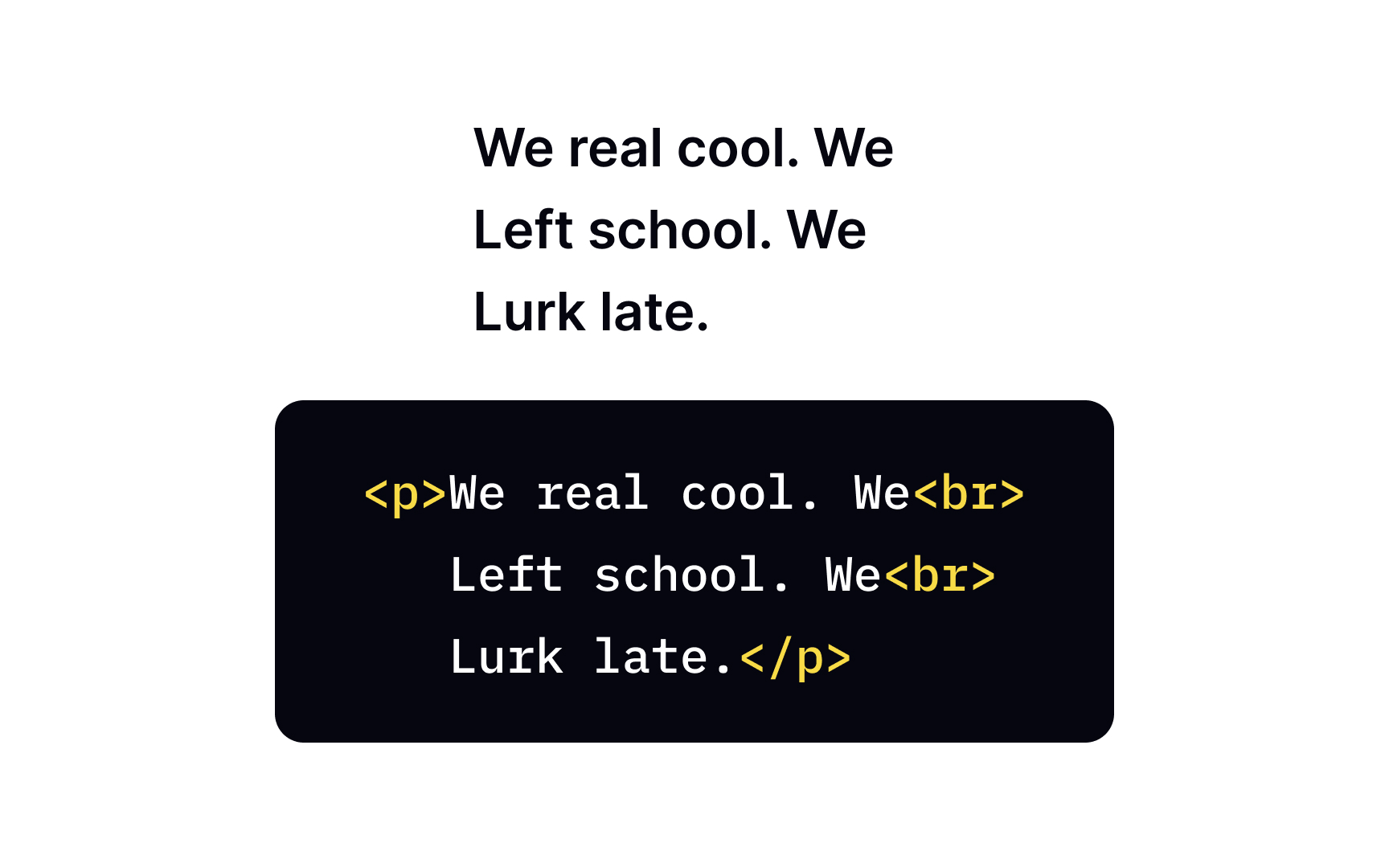
- Purpose: To create a single line break, often used in poems, addresses, or formatting text where you need strict line control.
- Self-closing: No closing tag required (<br> is invalid).
- Difference from <p>: <p> adds spacing before and after; <br> just moves to the next line.
5. List Elements (<ul>, <ol>, <li>)
Lists are a way to organize related information in a clean, structured format.
HTML gives us special tags to create lists, and this is also where nesting comes into play — putting one tag inside another.
🔹The Tag:
-
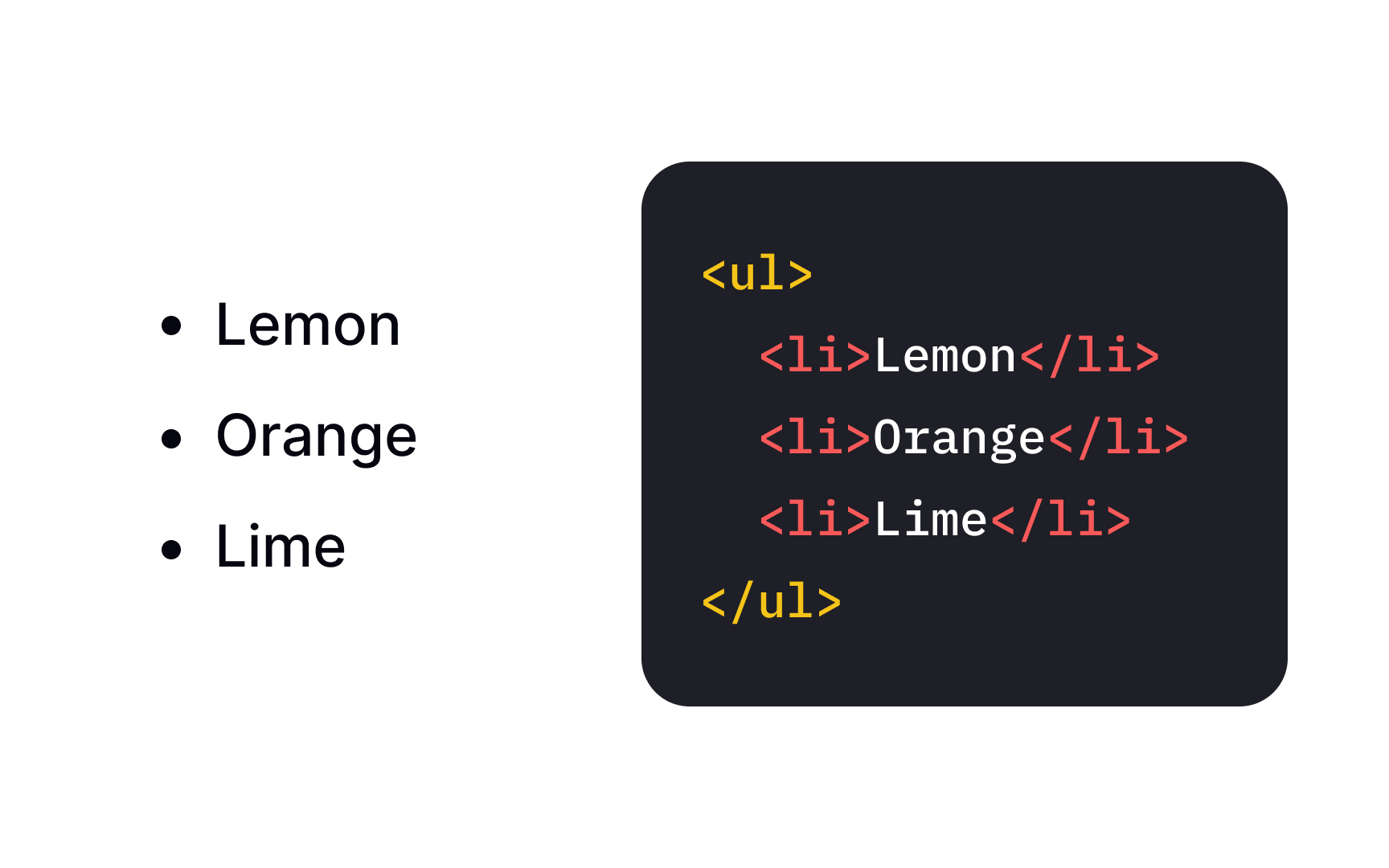
<ul> (Unordered List) :
- Creates a bulleted list (items marked with dots by default).
- Used when the order of items doesn’t matter.
-
<ol> (Ordered List) :
- Creates a numbered list (1, 2, 3... by default).
- Used when the order of items does matter (like steps in a recipe or instructions).

-
<li> (List Item) :
- Defines each item inside a list.
- Every single bullet point or step must be wrapped in an <li> tag.
🔹The Purpose:
- To group related content in a neat, easy-to-read format.
- To make content scannable for users and search engines.
- To show whether the order is important (<ol>) or not (<ul>).
🔹Example 1: Unordered List (Shopping List)
            <ul>
                <li>Tea Bag</li>
                <li>Water</li>
                <li>Sugar</li>
                <li>Milk</li>
            </ul>
Results:
- Tea Bag
- Water
- Sugar
- Milk
🔹Example 2: Ordered List (Steps to Make Tea)
            <ol>
                <li>First, boil the water in a kettle.</li>
                <li>Add tea bag, sugar and milk into it.</li>
                <li>Keep boiling it for 5 minutes.</li>
                <li>Serve the tea by pouring it into a cup.</li>
            </ol>
Results:
- First, boil the water in a kettle.
- Add tea bag, sugar and milk into it.
- Keep boiling it for 5 minutes.
- Serve the tea by pouring it into a cup.
6. The Anchor Tag (<a>)
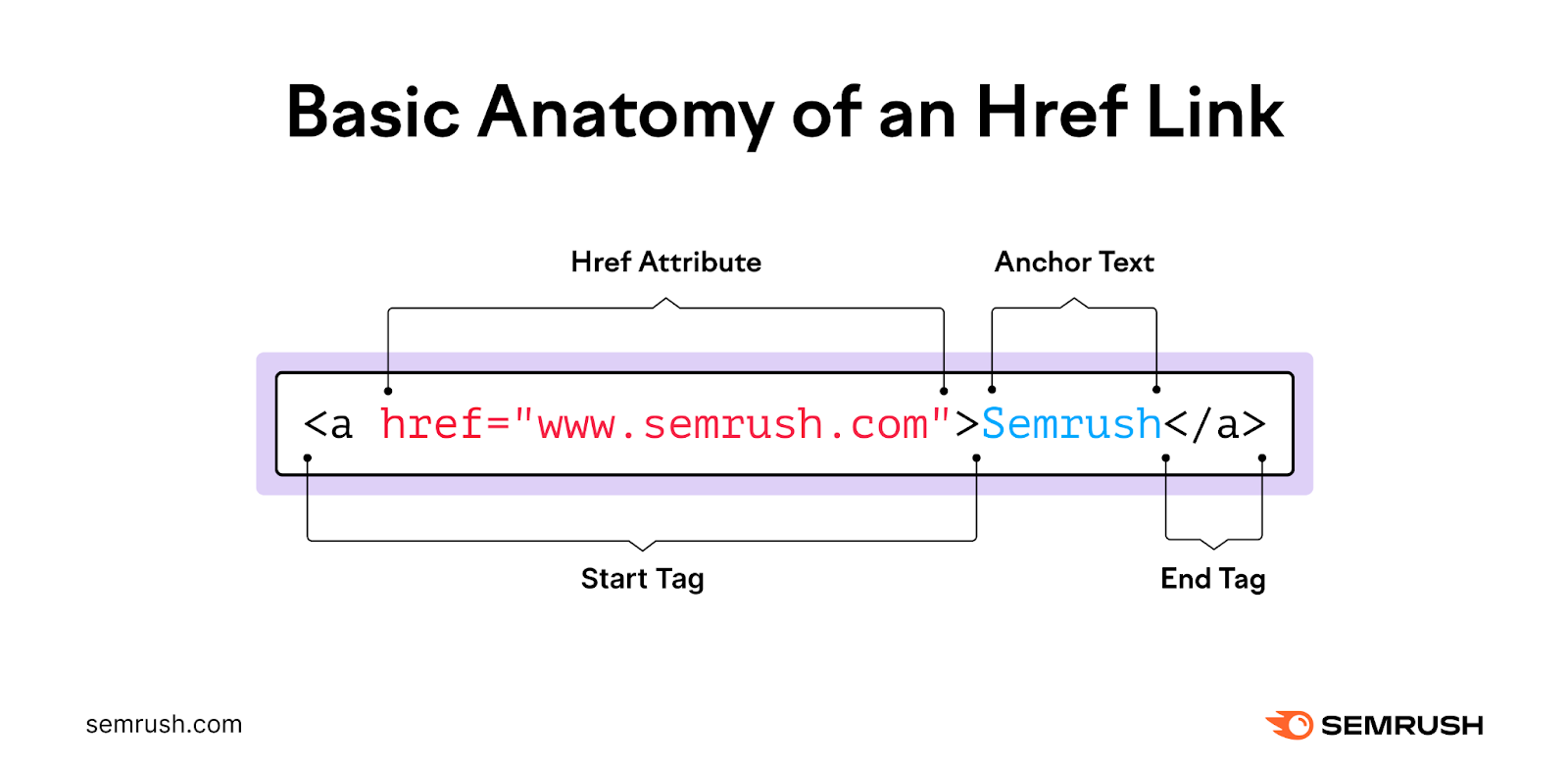
The anchor tag is what makes the web “hypertext.” It lets you create clickable links to another webpage, a file, an email address, or even a specific spot within the same page.
🔹The Tag: <a>
- Requires the href (Hypertext REFerence) attribute → this defines where the link goes.
- Can wrap around text or images to make them clickable.
🔹The Purpose:
- To allow navigation between pages, websites, or locations within the same page.
- To make content interactive (not just static text)
🔹Example: Simple Link
<a href="https://www.coderarmy.in/">Visit Coder Army</a>
🔹Result:
Visit Coder Army🔹HTML Links - The target Attribute
By default, links open in the same browser tab (_self).
But we can control where the link opens using the target attribute:
- _self → (Default) Opens the link in the same tab/window.
- _blank → Opens the link in a new tab/window.
- _parent → Opens in the parent frame (if using frames).
- _top → Opens in the full body of the window, ignoring frames.
7. The Image Tag (img)
The img tag is a self-closing tag used to embed images in a webpage.
🔹Purpose:
To display pictures, icons, or any visual content on a page.
🔹Important Attributes:
- src: The source of the image (file path or URL). Mandatory.
- alt: Alternative text shown if the image can’t load. Also read by screen readers for accessibility.
- height & width: Used to control the size of the image.
🔹Example:
            <img src="https://cdn.britannica.com/16/234216-050-C66F8665/beagle-hound-dog.jpg"
            height="300px"
            width="300px"
            alt="This is a Dog Photo">
🔹Result: