First Principle: The Web is More Than Just Text and Images
Webpages aren’t just about words and pictures. They should also handle videos, songs, and other media. Earlier, this was a big problem—playing a video or audio required extra plugins like Flash, QuickTime, or Silverlight. These were messy, unsafe, and didn’t always work everywhere.
The Core Problem
How do we add video and audio to a webpage in a way that is:
- Standard for all browsers
- Works without plugins
- Runs on desktops, laptops, and mobiles
The Solution: The HTML5 <video> and <audio> Tags
HTML5 gave us two special tags:
- <video> → for embedding videos
- <audio> → for embedding sound
No extra plugins needed—just pure HTML.
Part 1: Adding a Video
The main tag is <video>. At the very least, it needs the video file path.
        <!-- The simplest example -->
        <video src="my-awesome-video.mp4"></video>
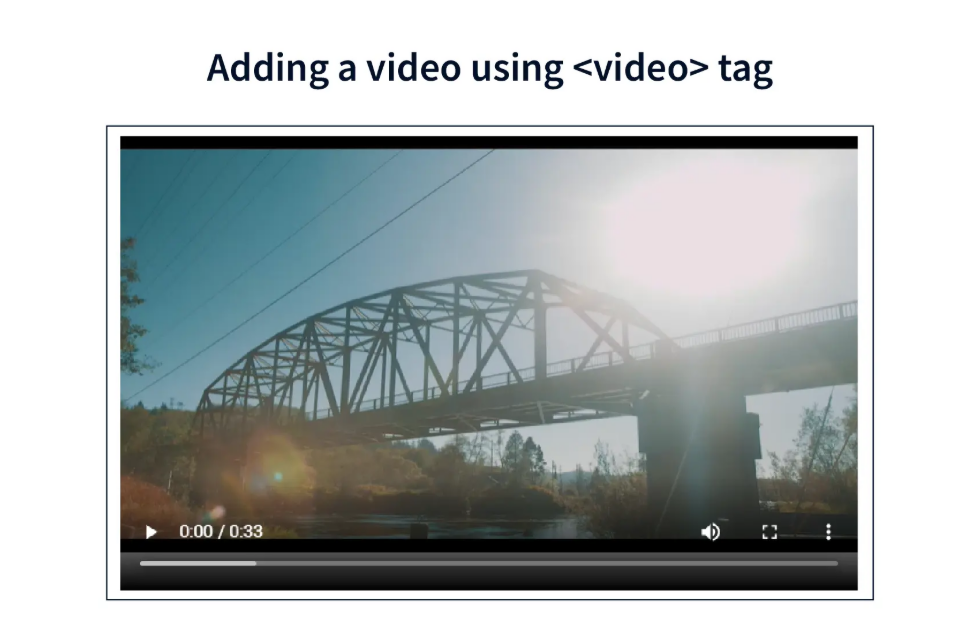
Problem:
If you use only this, the video just shows a still image (first frame). You can’t play or pause it—it’s useless as a player.
The controls Attribute: The Built-In Player
To make it an actual video player, we add the controls attribute. This instantly gives us play, pause, volume, and fullscreen buttons.
<video src="my-awesome-video.mp4" controls></video>
Part 2: More Control with Attributes
Now that we can add a video, let’s learn how to control its size, behavior, and look.
<video src="video.mp4" width="640" height="360" controls></video>
- width and height → Set the player size, just like with images.
- autoplay → Makes the video play automatically when the page loads.
        <!-- This will autoplay silently -->
        <video src="video.mp4" autoplay muted controls></video>
- loop → When the video ends, it starts again automatically. Useful for background videos.
- poster → Shows a preview image (like a YouTube thumbnail) before the video starts.
<video src="video.mp4" poster="images/video-thumbnail.jpg" controls></video>
Part 3: The <audio> Tag
The <audio> tag works almost the same as <video>, but it’s for sound files like songs, podcasts, or sound effects.
Just add the controls attribute to get a play/pause/volume bar.
        <p>Listen to our theme song:</p>
        <audio src="audio/theme-song.mp3" controls></audio>
Result:
The user gets a built-in audio player with all the basic controls.
Part 4: Advanced & Professional - Real-World Problems
So far, we’ve learned how to play videos and audio, but in the real world, there are bigger challenges:
Problem #1: Not all browsers support the same video format
- Chrome might support .webm,
- Safari on iPhone might only play .mp4.
If you only provide one file type, some users won’t be able to watch your video.
Solution: Use the <source> elementInstead of giving just one src on the <video> tag, you can add multiple
        <video controls poster="images/thumbnail.jpg">
            <source src="videos/my-video.webm" type="video/webm">
            <source src="videos/my-video.mp4" type="video/mp4">
            Sorry, your browser doesn’t support embedded videos.
        </video>
This is the professional way to add videos.
The type attribute tells the browser what format it is before trying to load it.
Problem #2: Accessibility (Making Videos Inclusive)
What about users who:
- Can’t hear the audio (deaf or hard of hearing)?
- Are in a noisy place (like a café) or a very quiet place (like a library)?
- Speak another language?
They need captions or subtitles
Solution: Use theThis tag lets you add captions, subtitles, or descriptions.
It usually links to a .vtt (WebVTT) file.
        <video controls>
            <source src="video.webm" type="video/webm">
            <source src="video.mp4" type="video/mp4">

            <!-- English Captions -->
            <track src="captions_en.vtt" kind="captions" srclang="en" label="English">

            <!-- Spanish Subtitles -->
            <track src="subtitles_es.vtt" kind="subtitles" srclang="es" label="Español">
        </video>
Breakdown of attributes:
- src → Path to the .vtt file
- kind → Type of track:
- captions: For people who can’t hear (includes sounds).
- subtitles: Translation for another language.
- descriptions: Audio descriptions for visually impaired users.
- srclang → Language code (e.g., en, es).
- label → The name shown in the captions menu.
This makes your media accessible to more people, which is a key part of professional web development.
The Robust & Professional Method (<source>)
        <video width="320" height="240" controls>
            <source src="movie.mp4" type="video/mp4">
            <source src="movie.ogg" type="video/ogg">
            Your browser does not support the video tag.
        </video>
Purpose: To ensure maximum browser compatibility.
The First Principle:
Not all browsers support the same video file formats.
- .mp4 (H.264 codec): The most widely supported today. Almost all browsers can play it.
- .webm (VP8/VP9 codec): Open-source, backed by Google, supported in Chrome & Firefox.
- .ogg (Theora codec): Older open-source option, used before .webm became dominant.
How It Works (The Logic):
- Browser checks <source src="movie.mp4" ...>
- If it can play MP4 → loads movie.mp4, plays it, and ignores the rest.
- If it cannot → moves to the next source.
- Browser checks <source src="movie.ogg" ...>
- If it can → loads movie.ogg and plays.
- If it cannot → no video loads.
The Fallback Text:
If the browser is too old (e.g., IE8, which doesn’t even know <video>), it will show:
Your browser does not support the video tag.
Summary (Example 1):
- Pros: Best method for professionals. Supports multiple formats, works for the largest audience.
- Cons: You need multiple encoded versions of the same video, which takes more work.
Example 2: The Simple & Direct Method (src attribute)
<video src="a.mp4" controls></video>
Purpose: Simplicity and directness.
How It Works (The Logic):
- Browser checks the src directly → "a.mp4".
- If it can play MP4 → video plays.
- If it cannot → video fails completely (black box or error).
- Pros: Easy to write, very straightforward.
- Cons: Risky. If the browser can’t play .mp4, the video won’t play at all.
Conclusion: Which Video Method Should You Use?
If you’re building a professional or public-facing website, the preferred method is to use the
That said, because .mp4 is now supported almost everywhere, many developers choose the simpler shortcut — adding the src directly on the <video> tag. This works fine for smaller or internal projects, but there’s always a slight risk that it won’t play on every device or browser.
Creating the Copyright Symbol ©
In HTML, you can display the copyright symbol using either an entity name or an entity number. Both render identically, but the entity name is usually easier to remember.
- Using the Entity Name (Recommended)
This is the most common and human-readable way.
Code: ©
Example in a footer:<footer>Browser output:
<p>Copyright © 2024 My Awesome Website. All Rights Reserved.</p>
</footer>Copyright © 2024 My Awesome Website. All Rights Reserved.
- Using the Entity Number
This approach uses the numeric code for the symbol. It works the same but is less intuitive.
Code: ©
Example in a footer:<footer>Browser output:
<p> © 2024 My Awesome Website. All Rights Reserved.</p>
</footer>Copyright © 2024 My Awesome Website. All Rights Reserved.
Other Common Symbol Entities You Should Know
The table below shows some frequently used HTML entities (both the name and the numeric code):
| Symbol | Description | Entity Name (code shown) | Entity Number (code shown) |
|---|---|---|---|
| © | Copyright | © |
© |
| ® | Registered Trademark | ® |
® |
| ™ | Trademark | ™ |
™ |
| < | Less-than (used to show code) | < |
< |
| > | Greater-than (used to show code) | > |
> |
| & | Ampersand | & |
& |
| " | Double Quote | " |
" |
| € | Euro Sign | € |
€ |